
Web
Sign in to your thread, ask Atoi, answer an Ask, follow a Task, read its Receipt, and share the reviewed result.
Use the web for Atoi's broadest surface. Start in your thread, keep it open while work runs, and open a Project or Settings only when you need them.
#Arrive and sign in
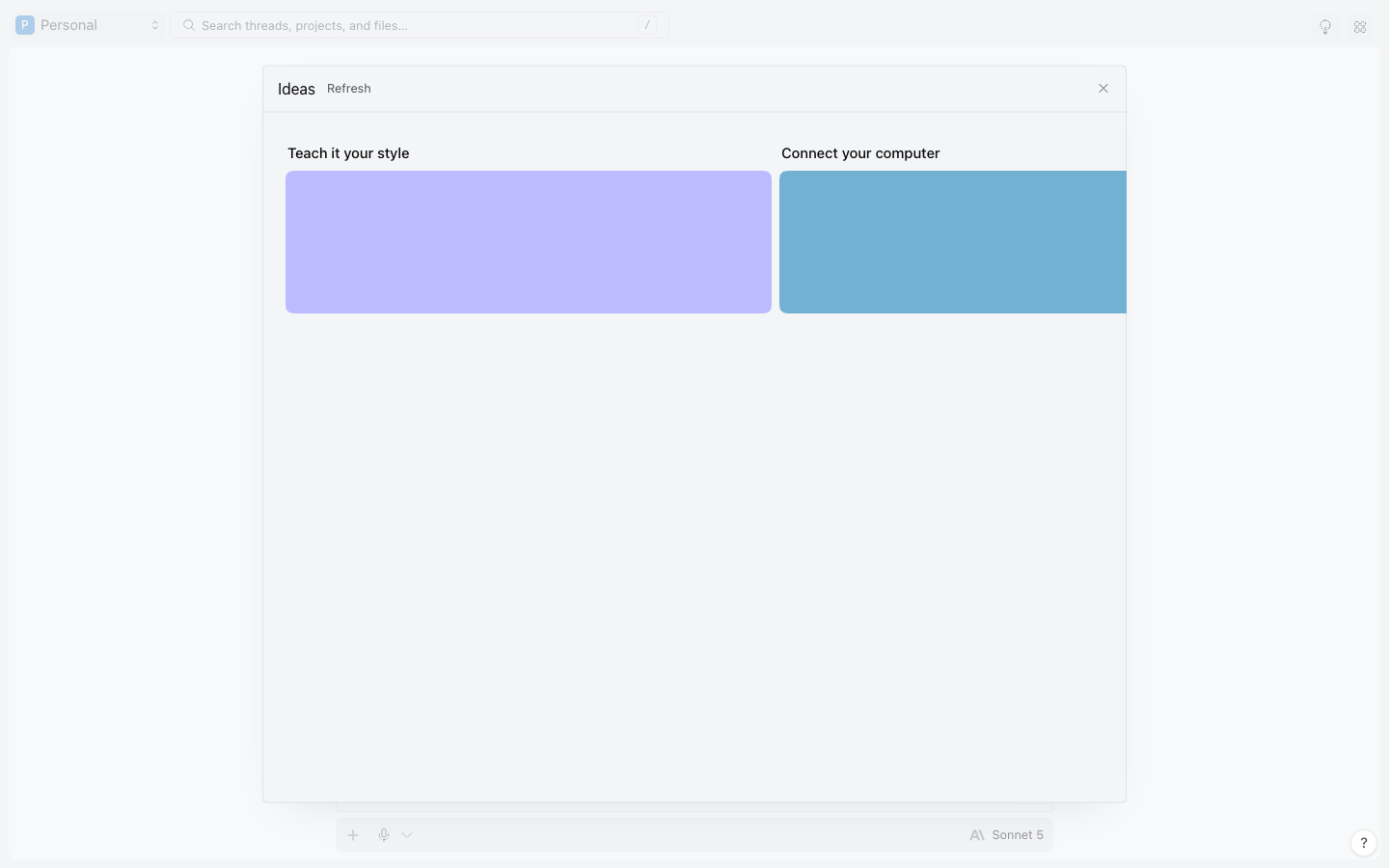
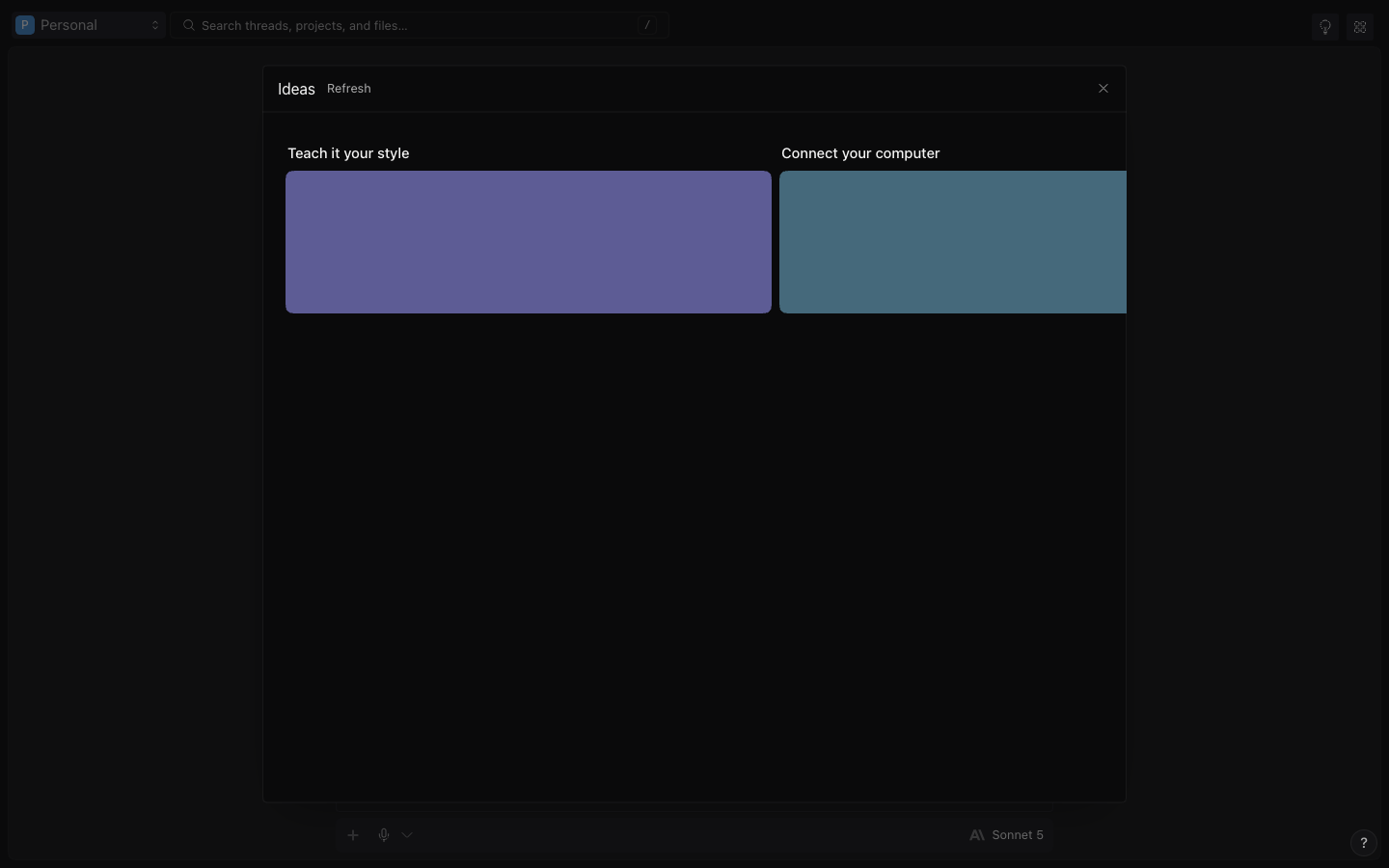
Open atoi.app and sign in. After onboarding, / opens your current Workspace; Personal stays at /, and shared Workspaces use /<slug>. The + button opens Ideas, with rows of your projects, threads, tasks, and documents.
Open an existing item in place, or press ⌘N to jump to the composer.
#Ask for an outcome
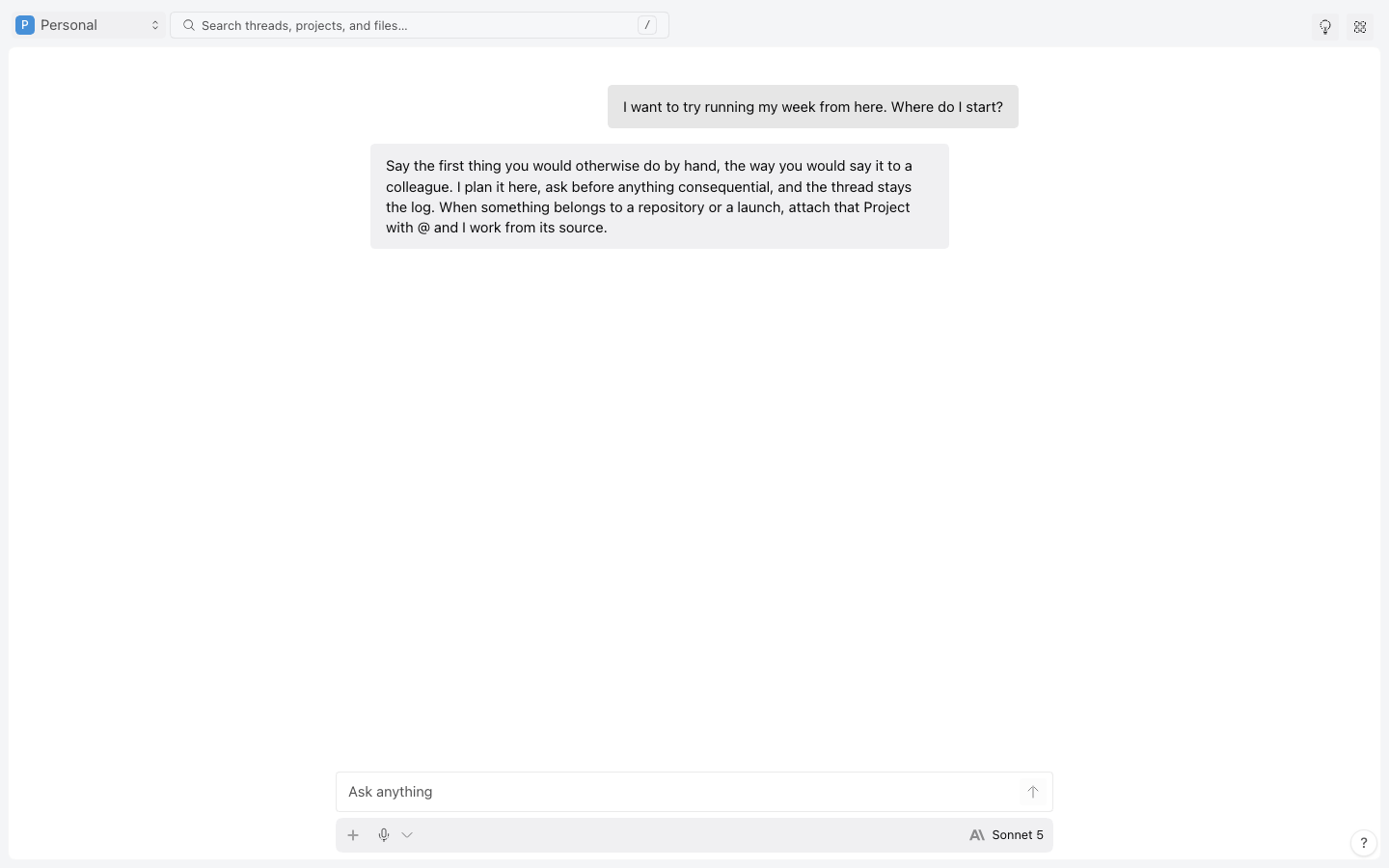
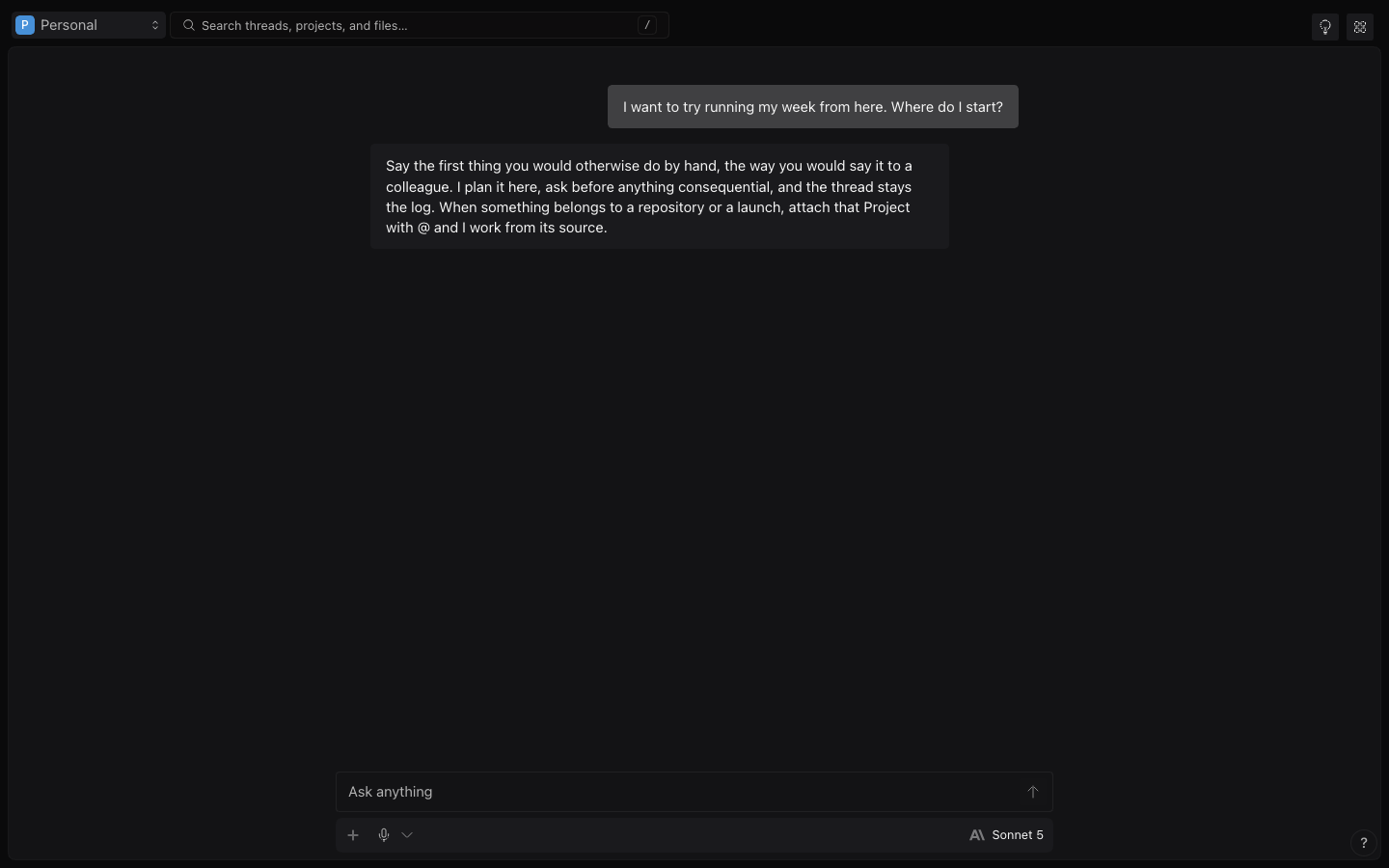
Write in the composer at the bottom of your home thread and describe the result you want. Type @ to attach an agent, Project, document, or Computer, and add a file or Connection only when it adds necessary context. Pick the model and reasoning strength before you send.
After you send, the answer arrives in the same thread. There is nothing to open or close.
#Answer an Ask
Read the question, its options, and what each one changes. Answer in the Thread. If the Ask is waiting in Inbox, open /inbox, confirm the request and target, then approve or deny it.
#Watch a Task
Open the Task from its Thread, from Inbox, from search, or from the panel's Tasks tab. The Task opens in the panel and adds ?task=<task> to the current address. Read the state literally: queued, running, waiting on you, completed, failed, or cancelled.
On the web you can read Task proof and inspect a Task change set. Start, cancel, continue, apply, and draft-PR actions are not on the web yet. Use the terminal for those actions.
#Read the Receipt
When the Task stops, read Result, Changes, Checks, and Proof in order. Open every artifact, inspect the immutable change set when one exists, and keep unresolved work in the same Thread.
#Share only after you review
Open the Thread menu and choose the public share action. Read the owner-visible redaction Receipt, copy the link, and test /share/<share> in a signed-out window before you send it.
Add a person to your Workspace when they should take part in a Thread. Use a public share when someone should only read a copy. Follow the sharing checklist for both.
#Use Projects and Settings when the work needs them
Open a Project under Settings to name it, set its guidance, bind its repository, manage its files, and archive or restore it. Its Tasks appear in the panel's Tasks tab.
On desktop, Settings opens as a dialog over the thread. On smaller screens, it opens as a page. Its tabs have /settings/<tab> addresses you can share. The rail lists Profile, Preferences, Personalization, Notifications, Models, Permissions, Memory, Connections, Plugins, Skills, Workspace, Computers, Data, and Billing. Usage is part of Billing.
Models holds your providers, your keys, and the model your threads run on. Connections holds the accounts, apps, and MCP servers Atoi can use. Plugins holds the agent plugins you installed, and Skills holds the skills you own or synced. Authorizing a provider and paying stay in the browser even when you start them in the terminal.
#Keep the thread's things in the panel
The panel on the right keeps what the thread produced, in six tabs: Photos, Artifacts, Files, Links, Tasks, and Automations. Each tab keeps one way to add its kind of thing, under the list or under the empty line.
Photos is every picture in the thread, newest first, three to a row. Tap one for the full-bleed viewer, then swipe or use the arrow keys to move through the grid. When the sender included text in a message you can read, it appears below the viewer as a caption. Otherwise, there is no caption. ⋯ offers Copy, Save, Share, Mention, and Delete; deleting leaves you on the next picture rather than closing the viewer. Upload opens the file picker.
Artifacts is what Atoi made, newest first, and one an agent pinned says Pinned. Open one and it reads in the panel, whether that is markdown, code, or a PDF, with ⋯ for Open, Copy, Share, Mention, Download, and Delete. Open goes to the thread it was made in.
Links holds every link sent in the thread, newest first, with its title and site. Open one, copy it, or hide it. Add link takes a URL, shows its preview, and sends it as a message with anything you say about it.
#Find anything with search
The header carries a search field beside your workspace name. Focus it or press / outside a text field and a panel opens under it with your recent searches, the operators, and results as you type. Press Esc or click elsewhere to fold it. On a phone, the search icon opens a full-page search with the field and a close control in the top row.
Results group into Threads, Messages, Projects, Files, Tasks, Artifacts, Memories, and Links. Only groups with matches appear. Narrow them with an operator typed into the field.
| Operator | Narrows to |
|---|---|
what: | One kind of record, such as what:task |
from: | Records from one person or agent |
in: | Records inside one Project |
after: | Records after a date |
before: | Records before a date |
file: | Files, matched by name |
Repeat what: or from: to widen a search, so what:task what:project finds both. Repeating a date bound keeps the tightest one. Combine different operators to narrow the search. ⌘K opens the command palette instead, which runs actions rather than finding records. See Keyboard shortcuts.
#On the web today
The web does the most of any client. You can run the whole Thread lifecycle, send with attachments and context, see who is present, react, and share publicly.
You can also manage Projects and Workspaces, set up Connections (messaging links included), Plugins, and Skills, read Task proof, inspect a change set, and answer Inbox decisions.
Two things still belong to the terminal: starting, cancelling, or continuing a Task, and applying a change set or opening a draft PR. Reading a Project's source state is also a terminal action today.
Read Terminal for those actions, or iOS when you want the same Threads on your phone.
Was this useful?