
Automations
Save a prompt, choose a schedule, and inspect everything it did.
An automation is a saved prompt with a schedule, an optional project, a time zone, and a record of every time it ran. Use one for work that should repeat and stay inspectable.
#Create one
Tell Atoi what to do and when, or open the panel's Automations tab and write it yourself. The composer's + menu opens the same tab, and so does g a. Name the outcome, the source, the format you want back, and when to stop. Avoid "the thing we discussed today" unless the automation belongs to a project that holds that context.
#Pick a schedule
| Type | When it runs |
|---|---|
| Daily | On chosen weekdays at a time |
| Interval | Every N hours, optionally on chosen weekdays |
| Monthly | On a day of the month at a time |
| Manual | Only when you run it |
Times use the automation's time zone. Check when it runs next before you save.
#Run, pause, or edit it
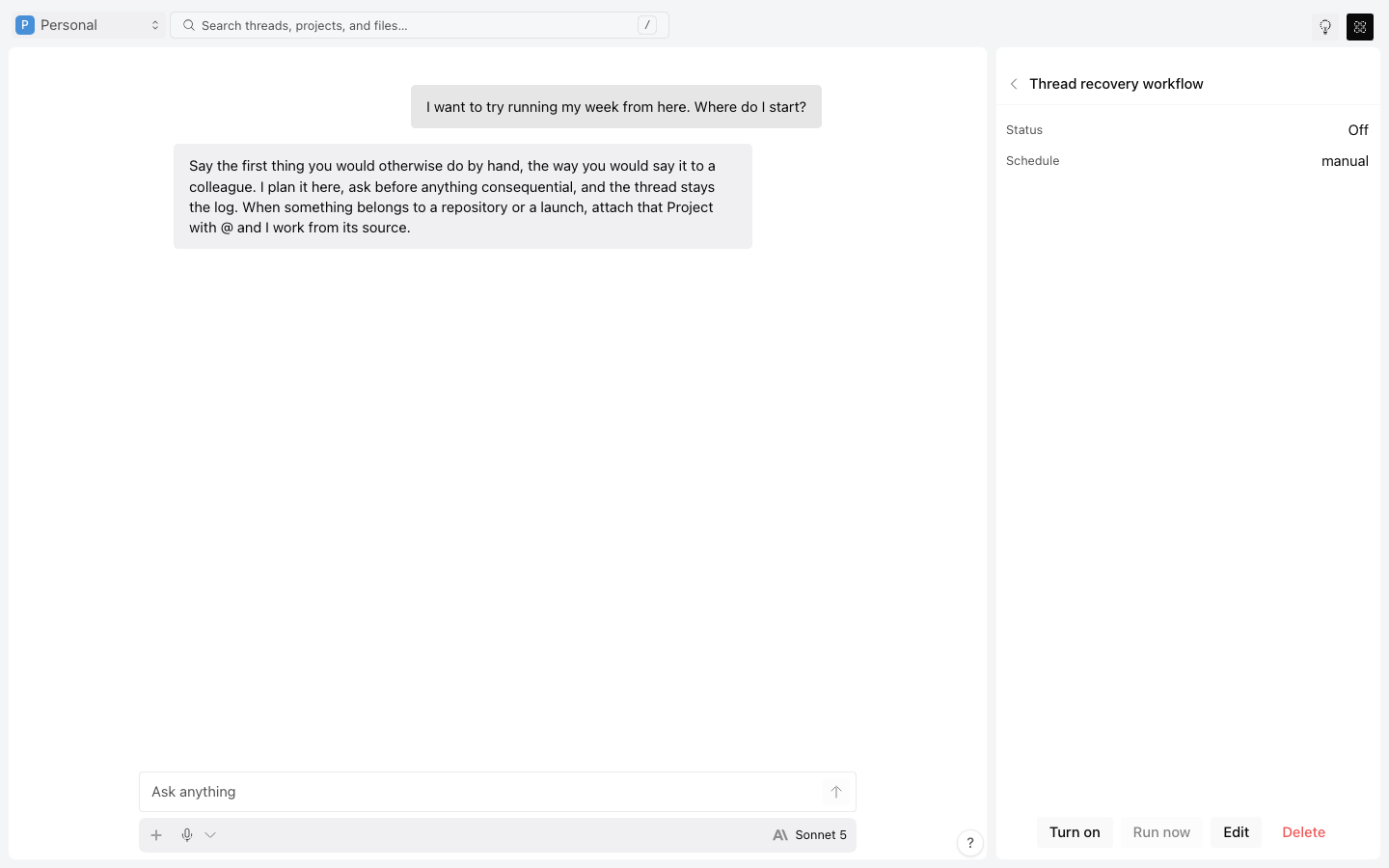
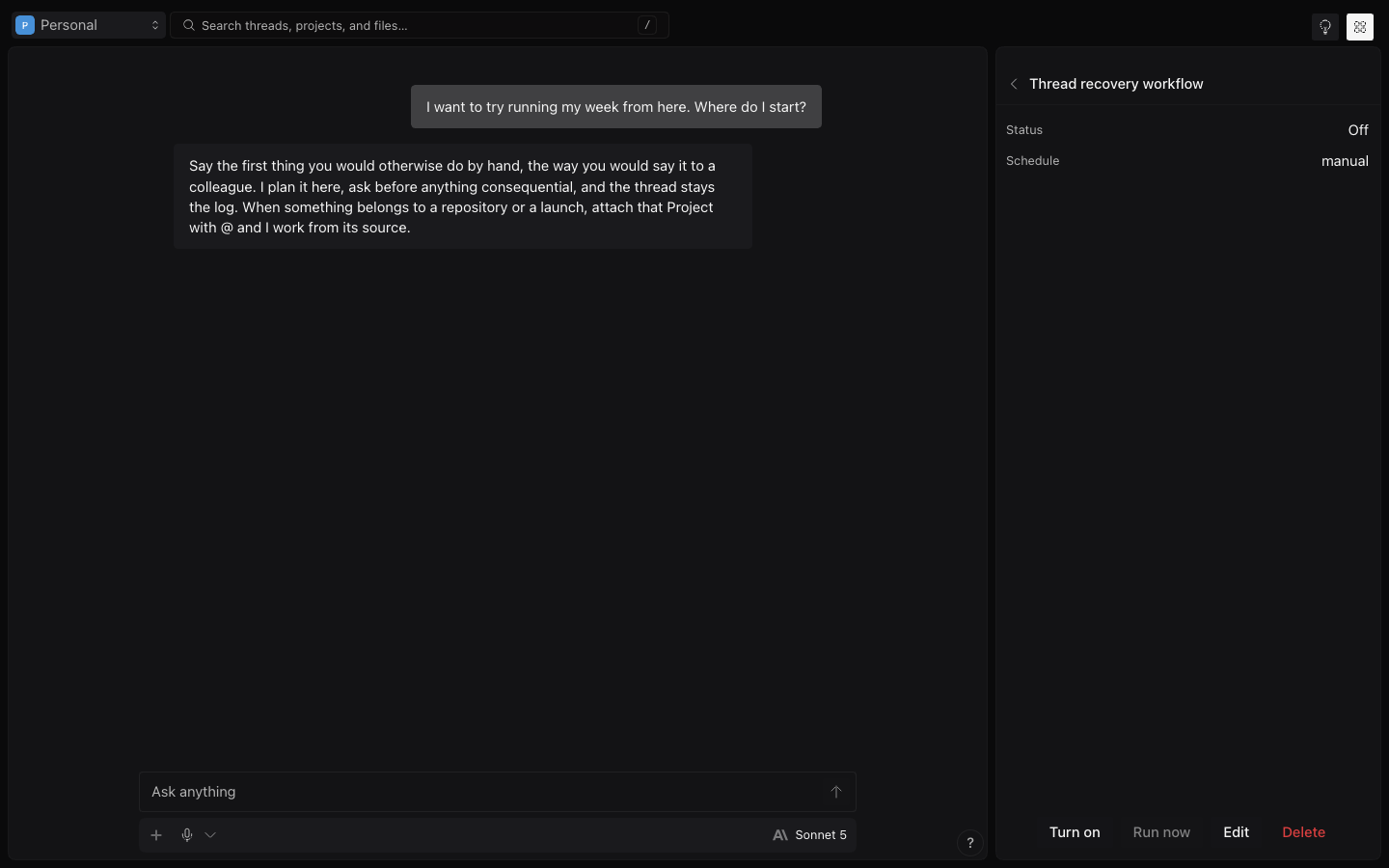
Run it now without touching the schedule. Pause it to keep its history while it stops running on schedule. Edits apply the next time it runs. Deleting asks you to confirm the exact automation.
#Read what it did
Each time it runs, Atoi records the trigger, schedule, start and finish times, state, result or error, and the task or thread message it created. A failed attempt stays in the history.
An automation that reaches an approval it cannot resolve waits for you. It never skips an approval because nobody was watching.
Read Asks and approvals next.
Was this useful?