
Computers
Where Atoi runs work: Cloud, your own Mac, or another machine you connect.
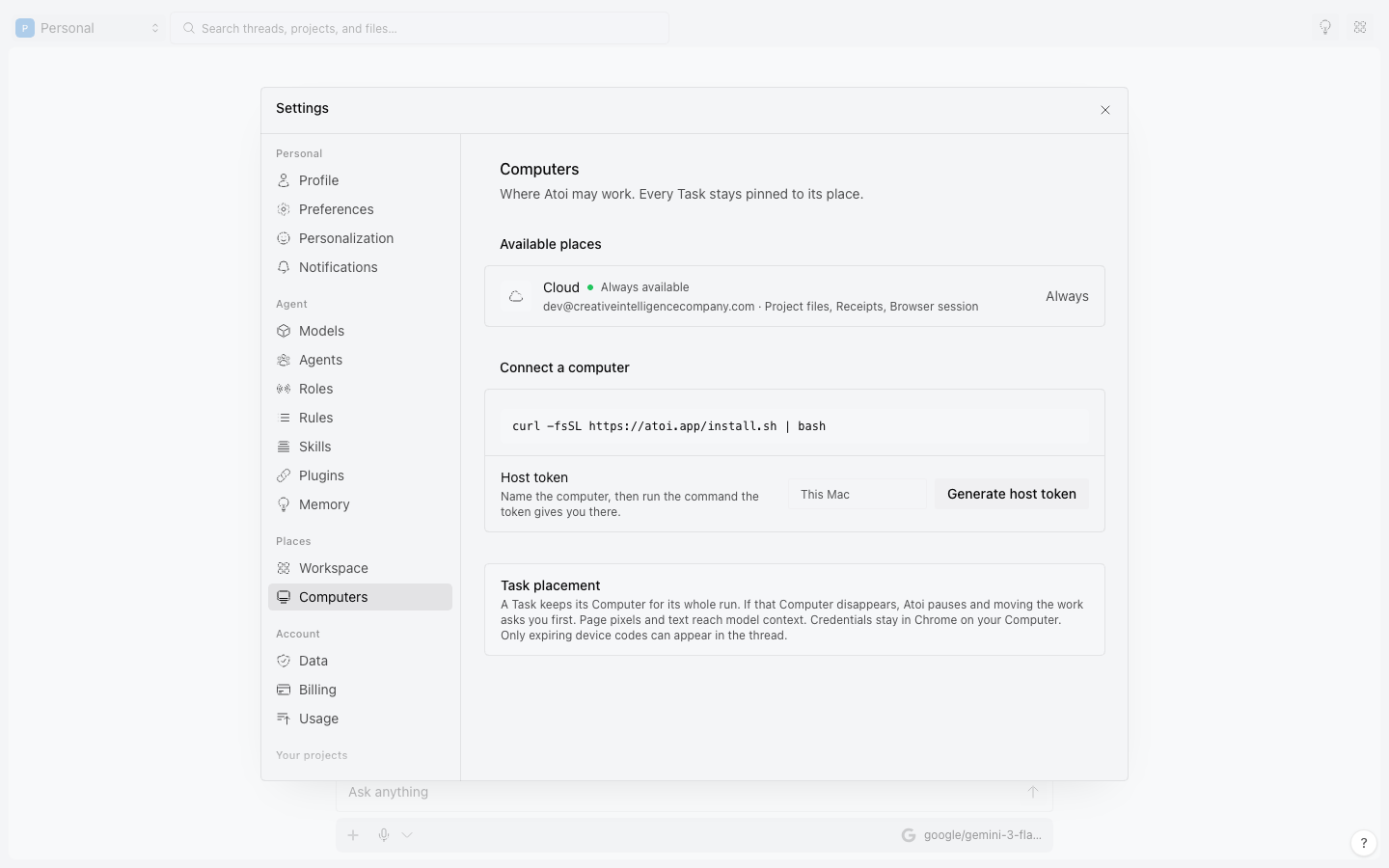
A Computer is a place Atoi can run work. Cloud is always there and needs no setup. Your Mac becomes a Computer when you connect it. Each computer says what it can do: run code, use a browser, or use a full desktop.
#Run on Cloud
Cloud runs code and a browser for you. It keeps your files between sessions and costs nothing while idle. It cannot use a desktop, and it starts logged out of your accounts unless you share a session with it.
#Connect your Mac
Connect your Mac to give Atoi a shell, your files, git, and a real browser. It uses a dedicated window, never your own tabs. Use the Mac app, or pair it from the terminal.
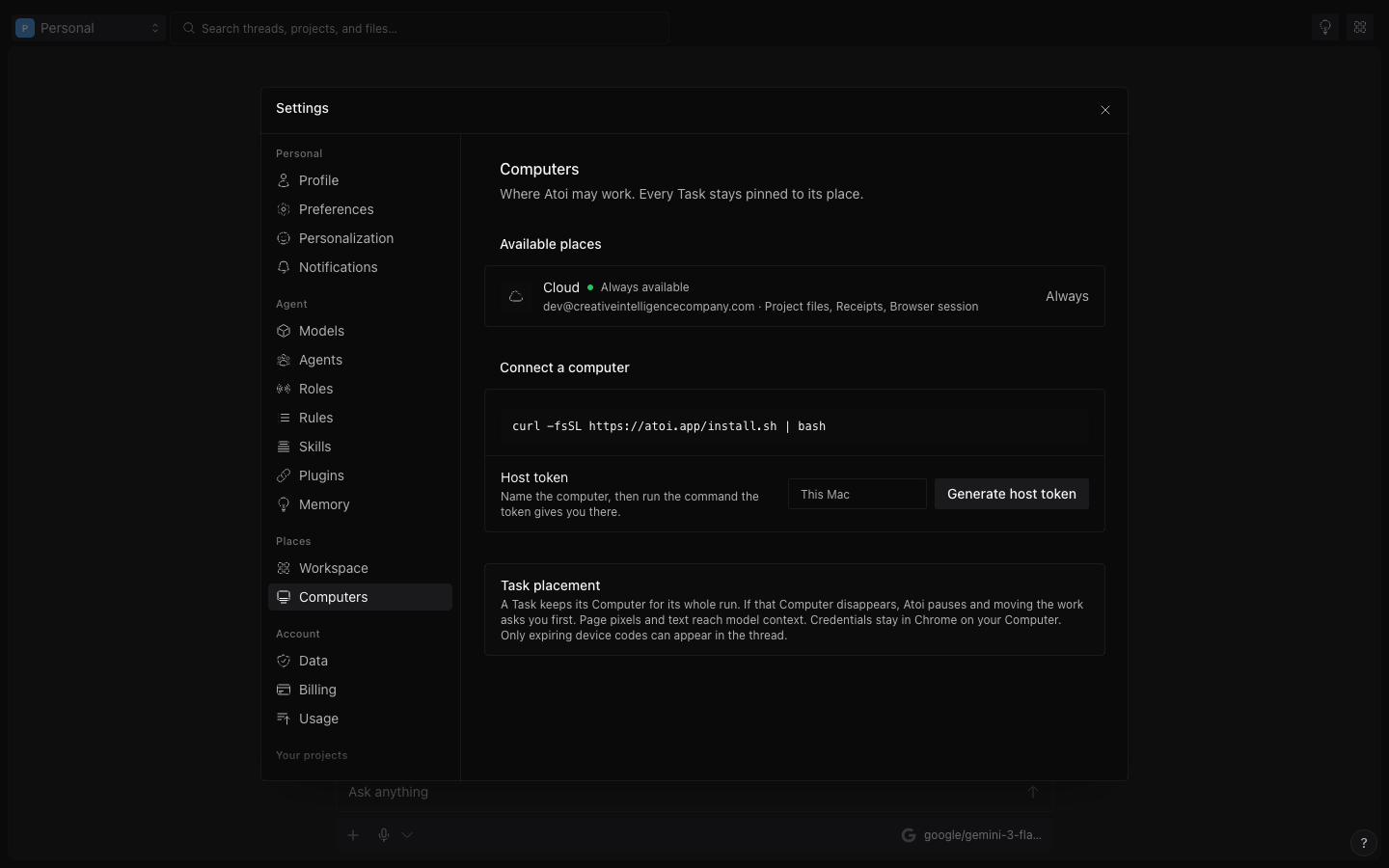
Open Settings → Computers and press Add a computer. A code like XXXX-XXXX appears in place, with a ten-minute countdown and, under No CLI on it yet?, the one-line install for a computer that has none, the same atoi you would get from the installer. Run the command it shows on that computer:
atoi connect --code XXXX-XXXXAn expired code says so, and a new one is one press away. Use a long-lived token instead is the manual path: a token you paste into atoi login. Pairing installs a small companion that runs in the background from then on and starts when you log in. The computer stays available for context, Tasks, and checks without a terminal left open, and atoi companion stop pauses it. Back in Settings → Computers you see what is connected, what each one can do, and whether it is awake.
#Share a browser session
When Atoi needs one of your logged-in sites, it uses a session you shared, kept in an encrypted vault. Every use leaves a note in the thread ("used your GitHub session"). Revoke any site, or all of them, under Settings → Connections, where every captured session is listed with a Revoke control and Revoke all sessions clears them at once. Sending, deleting, and paying still ask first inside a logged-in session.
#Atoi picks the least powerful tool
In order:
- a connection or an API;
- structured shell, file, and git operations;
- a browser it can read;
- a browser it can only see;
- a full desktop;
- handing control to you.
#Take over
Only one party drives a browser or desktop at a time. Take over from the computer tile in the thread: click or type in the live frame and the computer is yours. Atoi's input stops before yours starts, and the tile says Computer returned to Atoi when you hand it back. The thread records the handoff.
#Work in parallel
Two tasks never write to the same working directory at once. Parallel work happens in separate copies, and Atoi brings the results together as commits, patches, and artifacts.
For the state of work on a computer, open its Task, and if a computer is offline, read Troubleshooting.
Was this useful?