
Atoi 101
Your first useful session, start to finish.
In about ten minutes you will sign in, ask Atoi for something real, answer one question, and read a result you can trust. You need a model and nothing else: no project, no setup, and no list of threads to start. Everything happens in your Workspace's thread.
#Sign in and connect a model
Sign in at atoi.app. Onboarding asks you to connect a model provider, because Atoi runs on your own keys or subscriptions. Pick a provider and connect it. Then set the model your thread runs on.
Change the provider later under Settings → Models, and set the model your threads run on with Set default on that provider's page. See Models. Anything still left to set up waits as a Set up row at the top of Ideas until it is done.
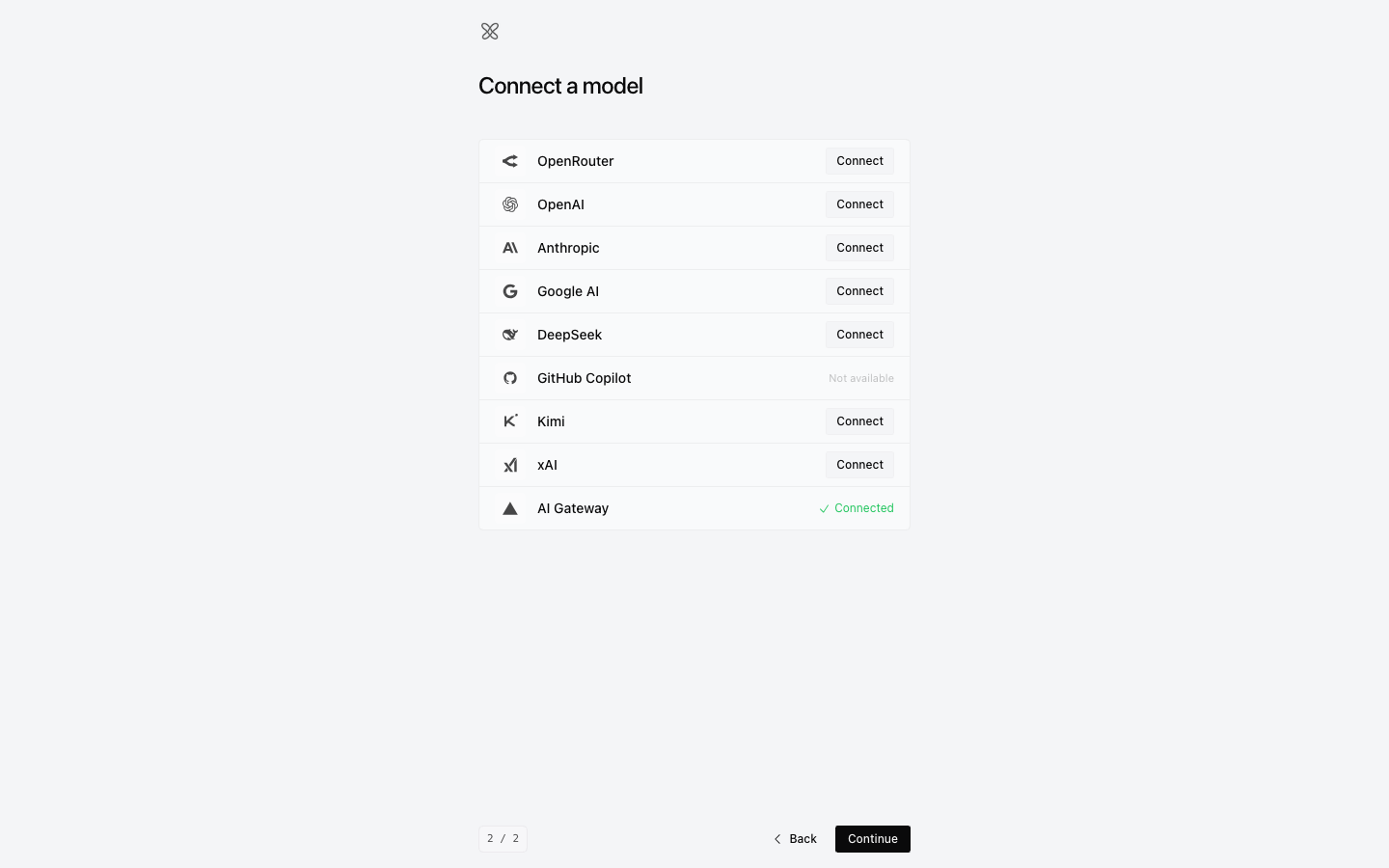
Checkpoint. The model picker in the composer shows the model you chose.
#Let Atoi ask first, or ask yourself
You land on your home thread. It never sits empty: Atoi thinks for a moment and then asks what you want to do first. Answer that card, or press ⌘N to jump to the composer and describe your own outcome. (Ideas in the header opens the rest of your work whenever you want it.)
For this walkthrough, ask for something that needs a decision from you:
Plan a two-week trial of Atoi for my team. Ask me anything you need before you write it.
Say what you want to end up with, not how to do it. Type @ to attach a project, a document, an agent, or a computer only when the request needs it. A clear request with one source beats a pile of context.
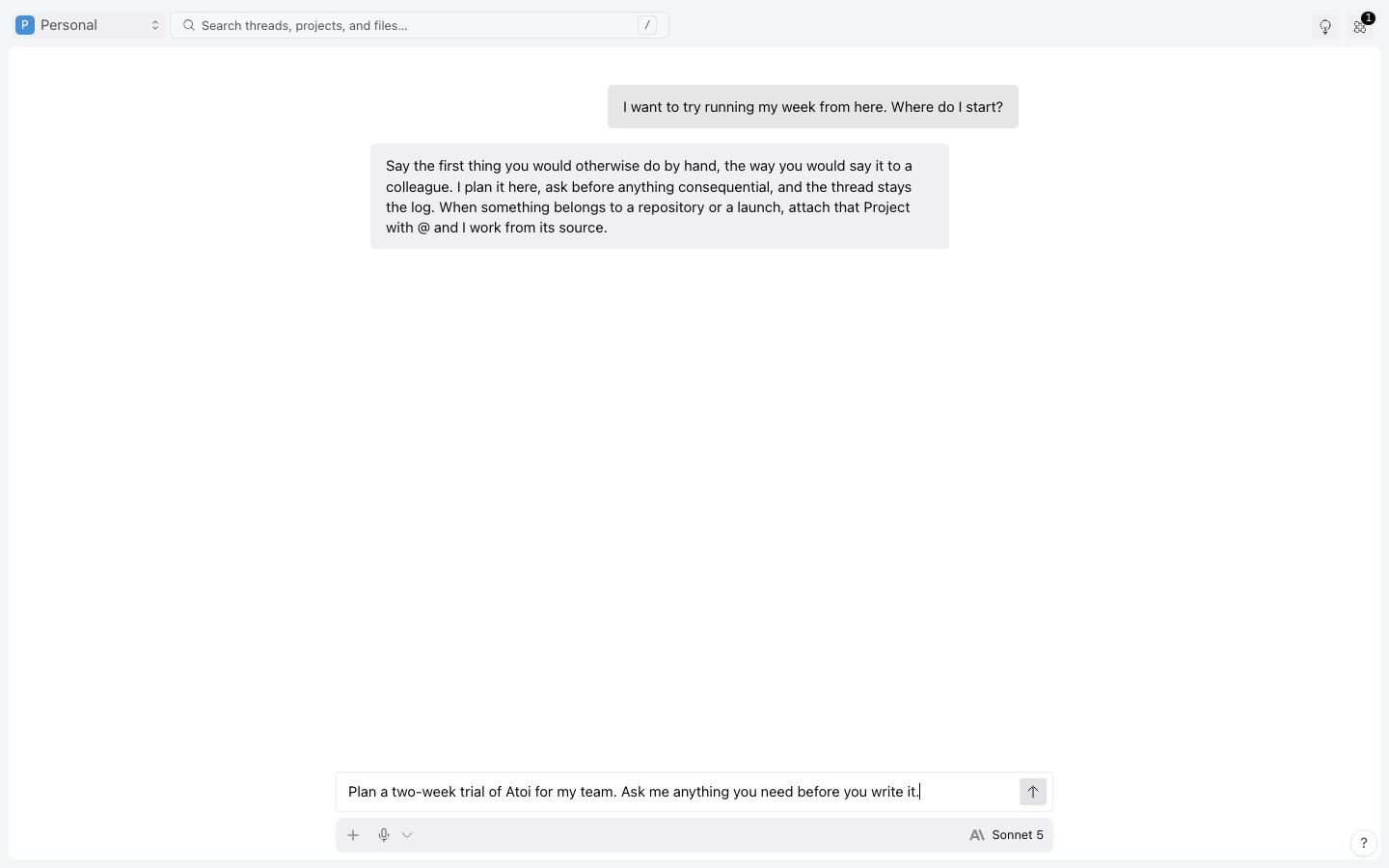
Checkpoint. Your message appears in the thread at once, and the thread says what Atoi is doing, such as Atoi is thinking.
#Answer the ask
When the request holds a real choice, Atoi stops and asks. The ask card shows the question, the options, and what each one changes. Pick one. Your answer stays in the thread as part of the record, and Atoi continues on its own.
If Atoi is about to do something consequential, it shows an approval instead: the exact action, the target, and the payload. Approve it or decline it; to change what runs, decline and say what you want instead. See Asks and approvals.
Checkpoint. The card shows your answer, and the next message from Atoi builds on it.
#Watch the work
Short work happens in the thread. Longer work becomes a Task with its own state: queued, running, waiting on you, completed, failed, or cancelled. Close the tab if you like. The task keeps going, and the thread keeps the story.
Checkpoint. The panel's Tasks tab lists the task with its state.
#Read the result
A finished result comes back into your thread as a Receipt, and a Receipt answers four questions.
- What did Atoi produce?
- What changed?
- Which checks ran, and what did they show?
- What is still open?
For code, that means changed files, test output, and a preview or a screenshot. For a plan or a question, it means the current state and the evidence behind it.
"Done" and "verified" are different answers, and Atoi tells you which one it is giving. If a claim matters, ask Atoi to show the evidence.
Checkpoint. You can point at the sentence in the result that answers each of the four questions.
#Add a project when it helps
When a request belongs to a repository, a launch, or a product area, attach that Project with @ so Atoi works with its source, files, and decisions. Atoi will often propose this itself. A project adds context; it does not change how you talk to Atoi, and your thread stays where it is.
#If something did not happen
- No ask card appeared: your request had no real choice in it, and that is fine. Try a request with a trade-off.
- The thread stopped after your answer: read the failure notice and fix the cause. Retryable failures can offer Resume, or Retry if the response never started. The action is available only on the latest message, outside a shared view, when Atoi has enough information to retry. Wait until any stated retry time has passed. If a key or a balance is the cause, fix it under Settings → Models first. See Troubleshooting.
- The picker shows a model you did not choose: choose the enabled model you want for the next request.
Read Home next to see how Ideas keeps all of this within reach.
Was this useful?